Step 1
Open the Users list
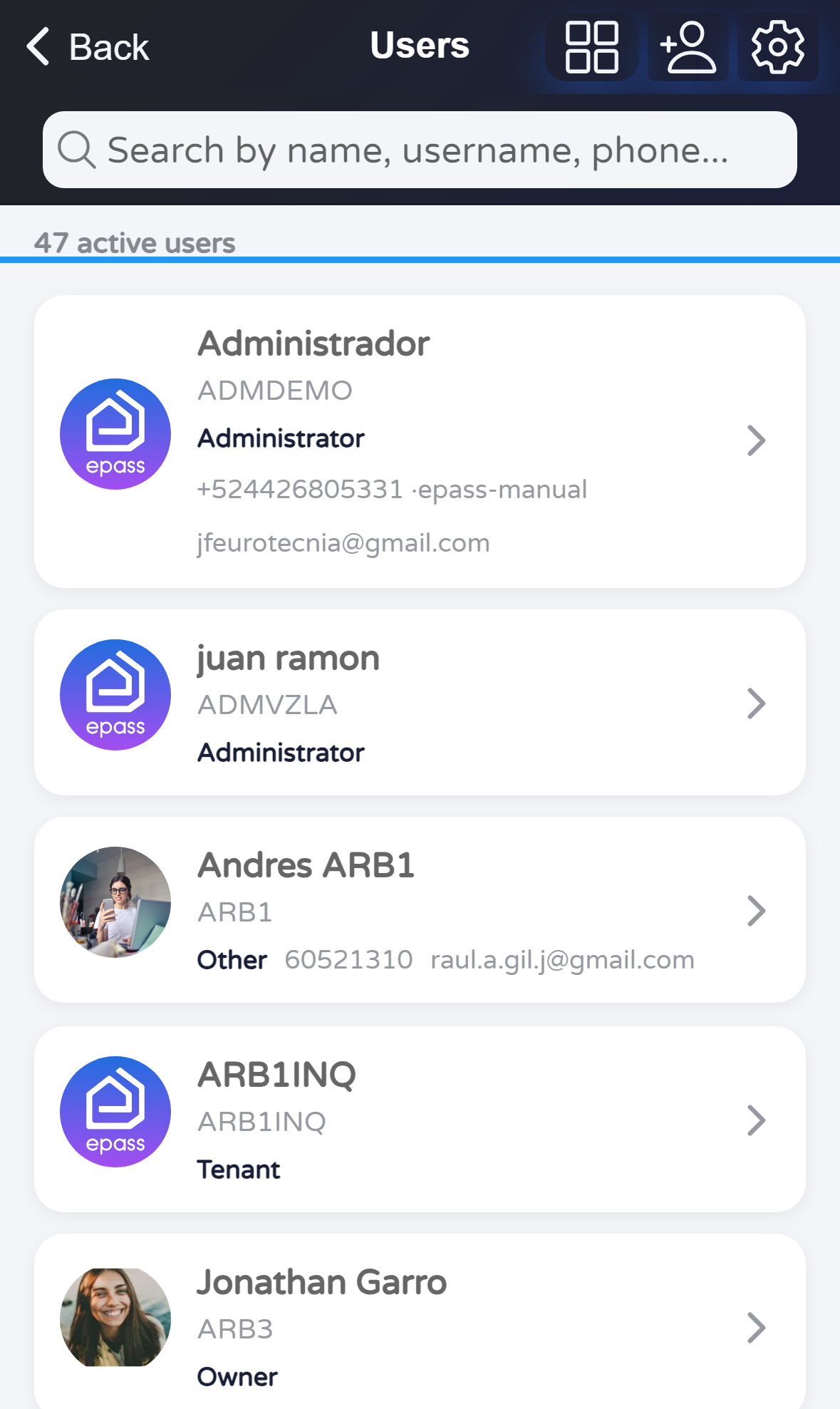
From Profile, go to the Security tab. Tap Users. When the list loads, you will see active users and their cards.

Document version 0.0.1 · Generated 15 May 2026, 09:01
PDF: in the browser use Ctrl+P (or Cmd+P) → Save as PDF to share or archive.
This guide shows how someone with permission reaches the Users list from Security, opens a person’s menu, chooses Deactivate, and reads the confirmation message. The automated screenshots do not confirm deactivation: they tap Cancel so no account is changed.
If a picture shows a blue frame, it is only to help you follow the steps; it is not part of the app.
Before you start
What you will do
You will open Profile → Security → Users, open one person’s menu, tap Deactivate, and read the confirmation before deciding.
Steps
From Profile, go to the Security tab. Tap Users. When the list loads, you will see active users and their cards.
Tap the person’s card. A menu opens from the bottom with several actions. Deactivate is the one that starts the process (next step). Do not use it unless you really want that person to stop being active in the list.

A message asks whether you are sure. If you tap Deactivate (or the equivalent confirm button), the person becomes inactive and disappears from this list. The app may then show a short success notice. If you changed your mind, tap Cancel. In some app languages the menu may be translated but this confirmation can still appear in Spanish.
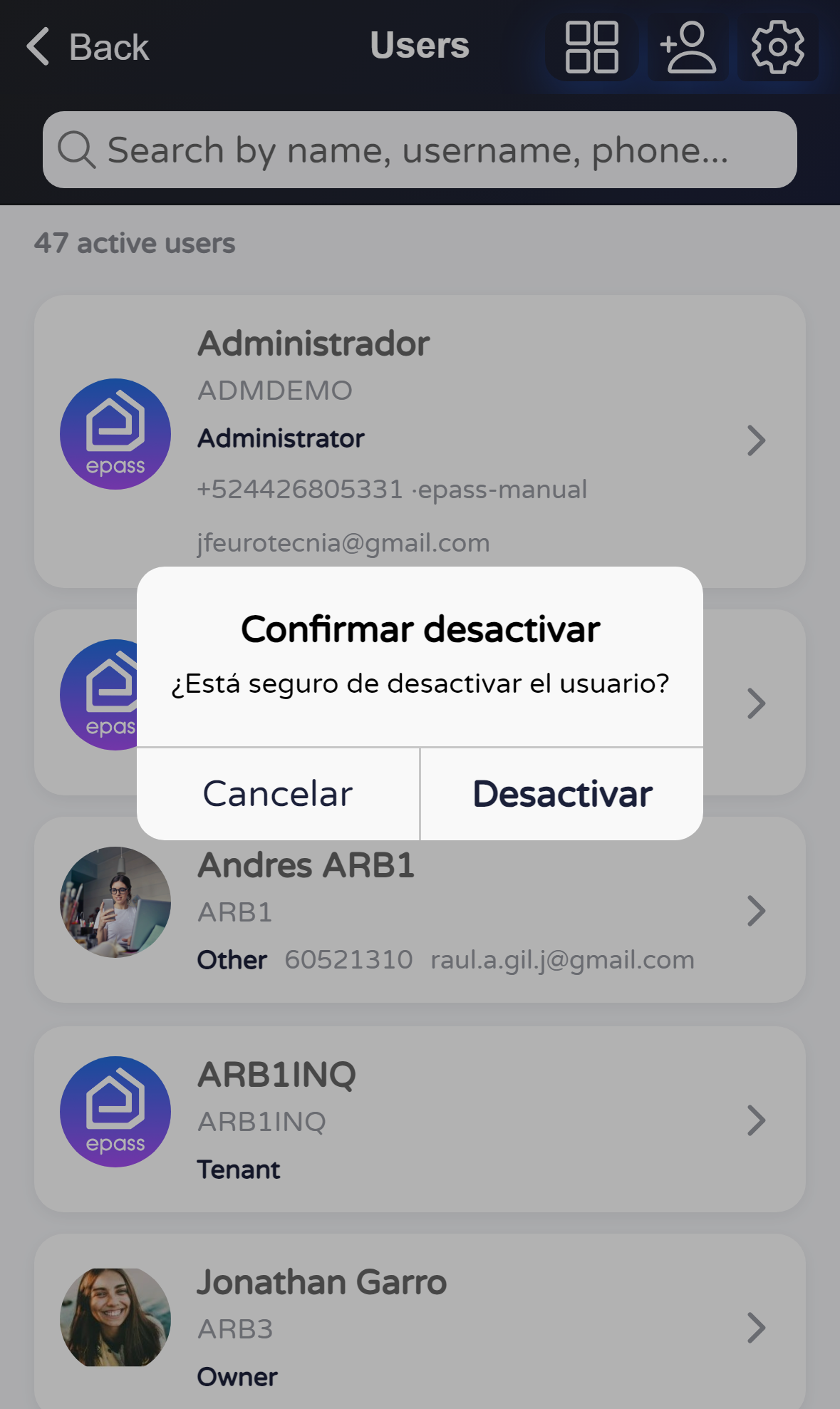
Administrator, Supervisor, and Chief can deactivate from this screen. Security sees the user list but, if they try to deactivate or change a password, the app explains they do not have permission.
The list only shows active users. After deactivation, search and filters will not find that person here until they are active again.
Useful notes