Step 1
Your profile
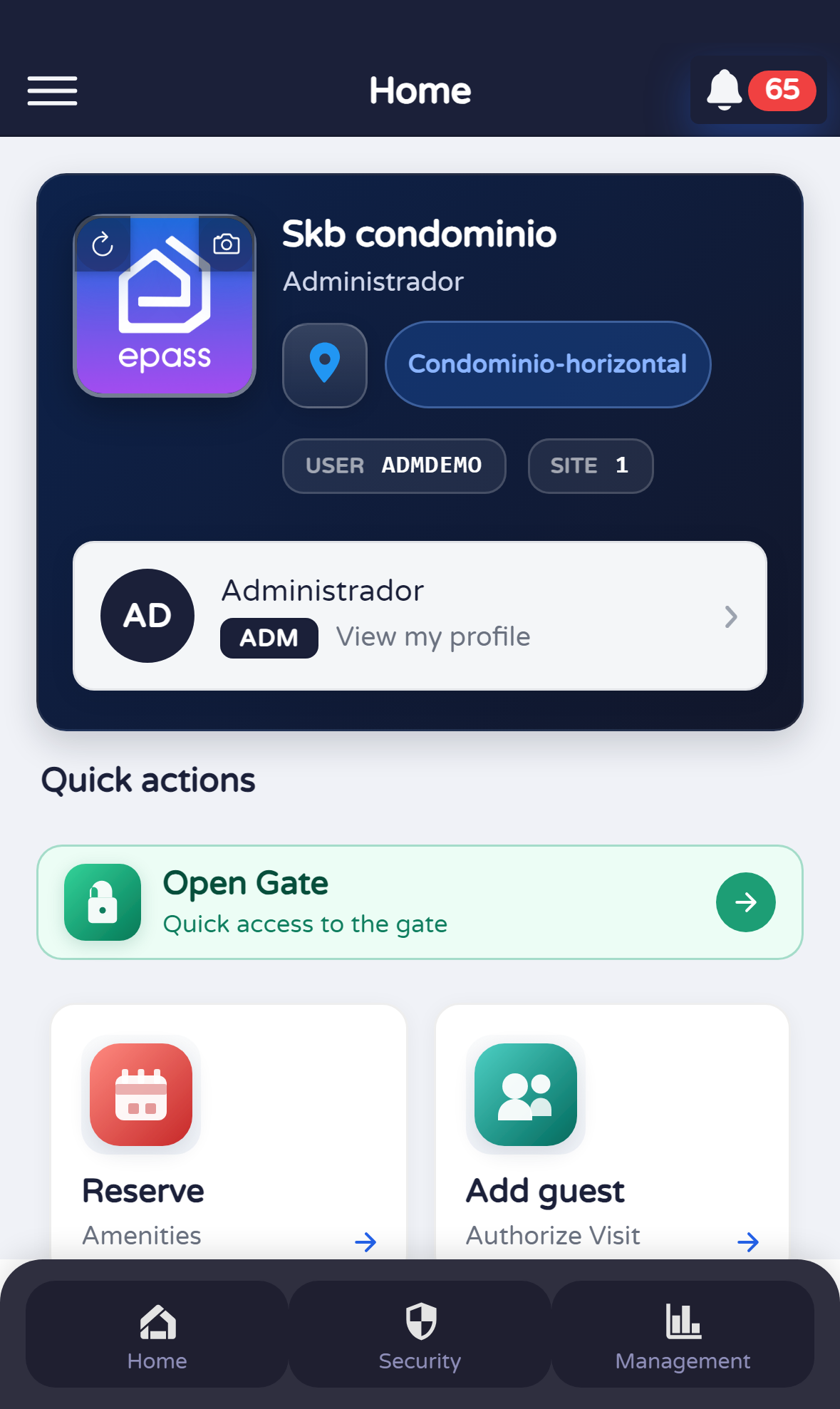
Open the Profile tab at the bottom. There you see your own summary and shortcuts. In the next step you will switch to Security.

Document version 0.0.1 · Generated 14 May 2026, 20:47
PDF: in the browser use Ctrl+P (or Cmd+P) → Save as PDF to share or archive.
This guide is for administrators (or similar roles) who can change user details in EPASS. It shows how to go from your profile to Security, open Users, pick someone, change their information, and save.
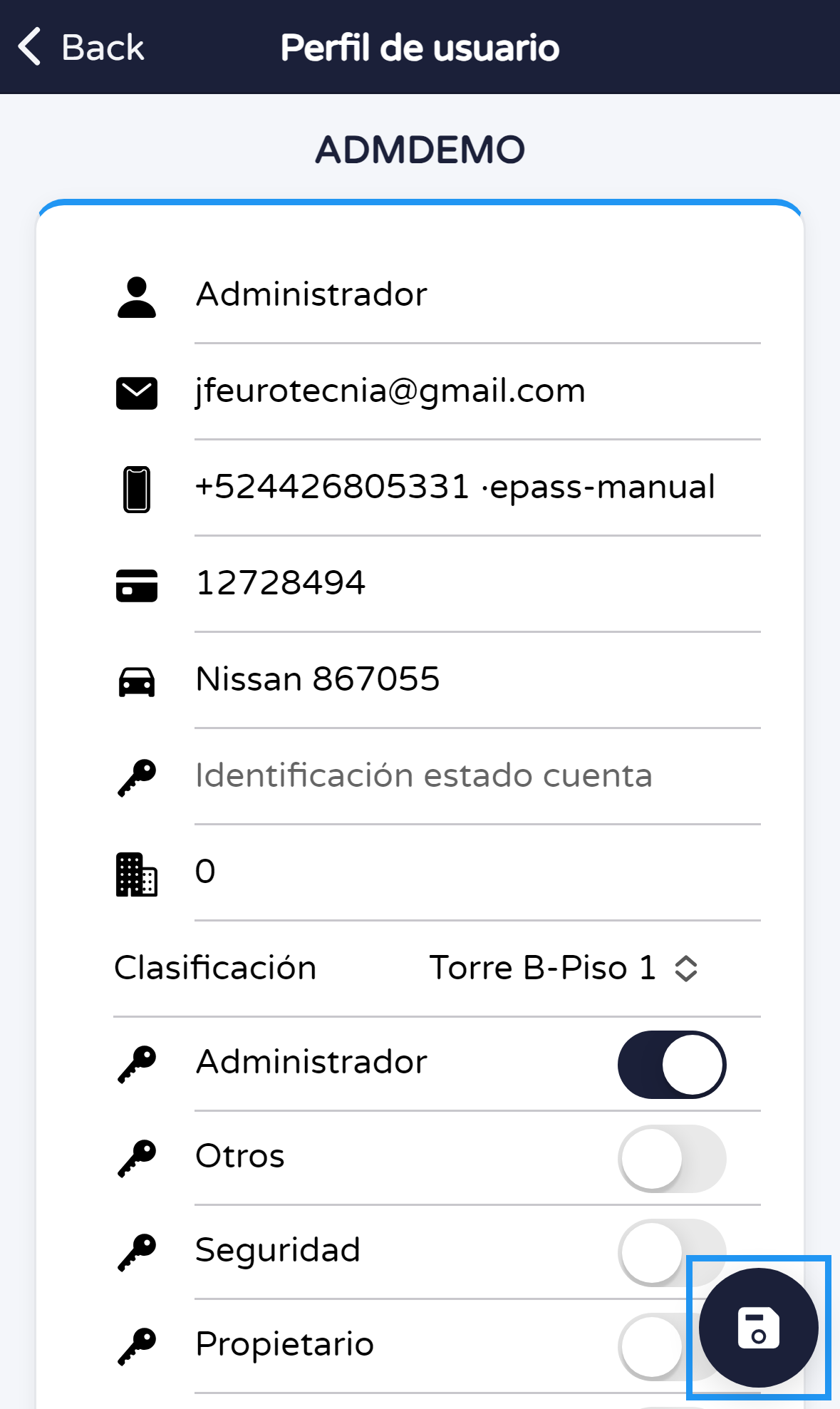
In some pictures you may see a blue frame around a button or area. That frame is only to help you follow the guide; it is not part of the app.
Before you start
What you will do
You will open Profile, then Security, then Users. You will choose someone, tap Edit, confirm when the app asks, change information (for example the phone), tap Save, and confirm again.
Steps
Open the Profile tab at the bottom. There you see your own summary and shortcuts. In the next step you will switch to Security.
Tap Security in the bottom bar. You will see the Security screen with several large shortcuts (each one opens a different task). Find the one named Users (or the people icon with that label).
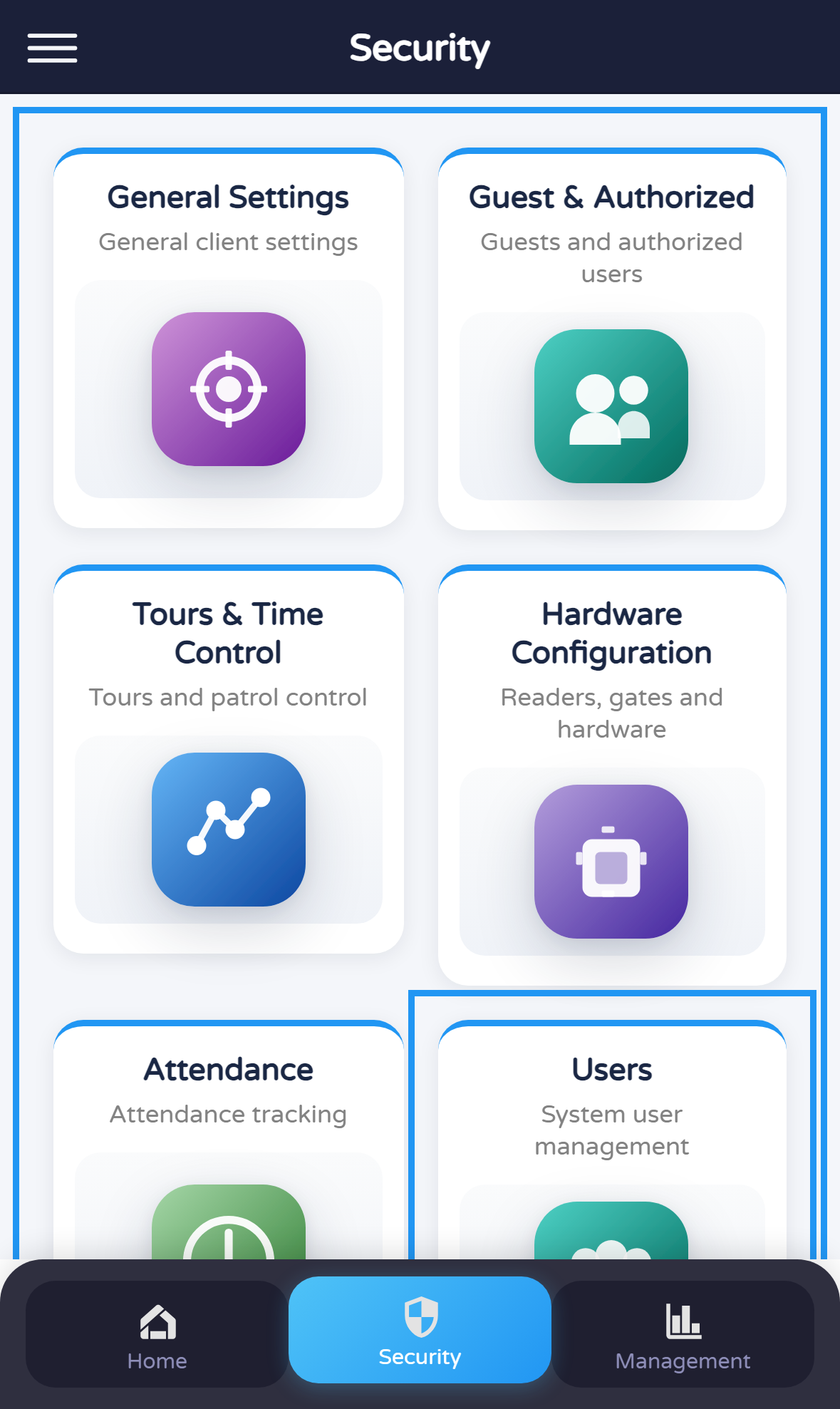
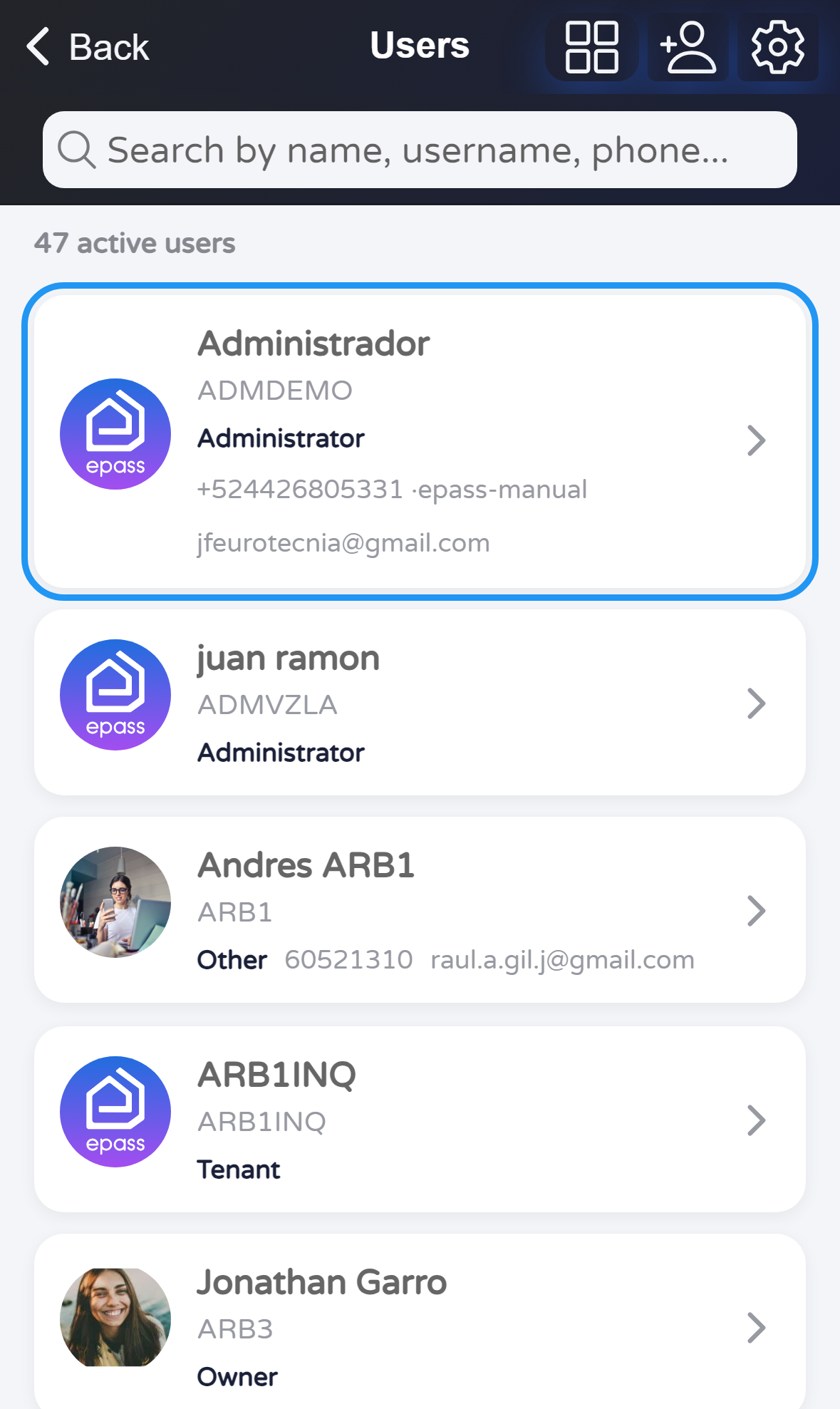
Tap Users. Wait until the list of people appears. Tap the first card in the list (the example uses the first row). A menu opens from the bottom: tap Edit. The app will ask if you really want to continue: tap Edit again. Then you will see that person’s details on the next screen.

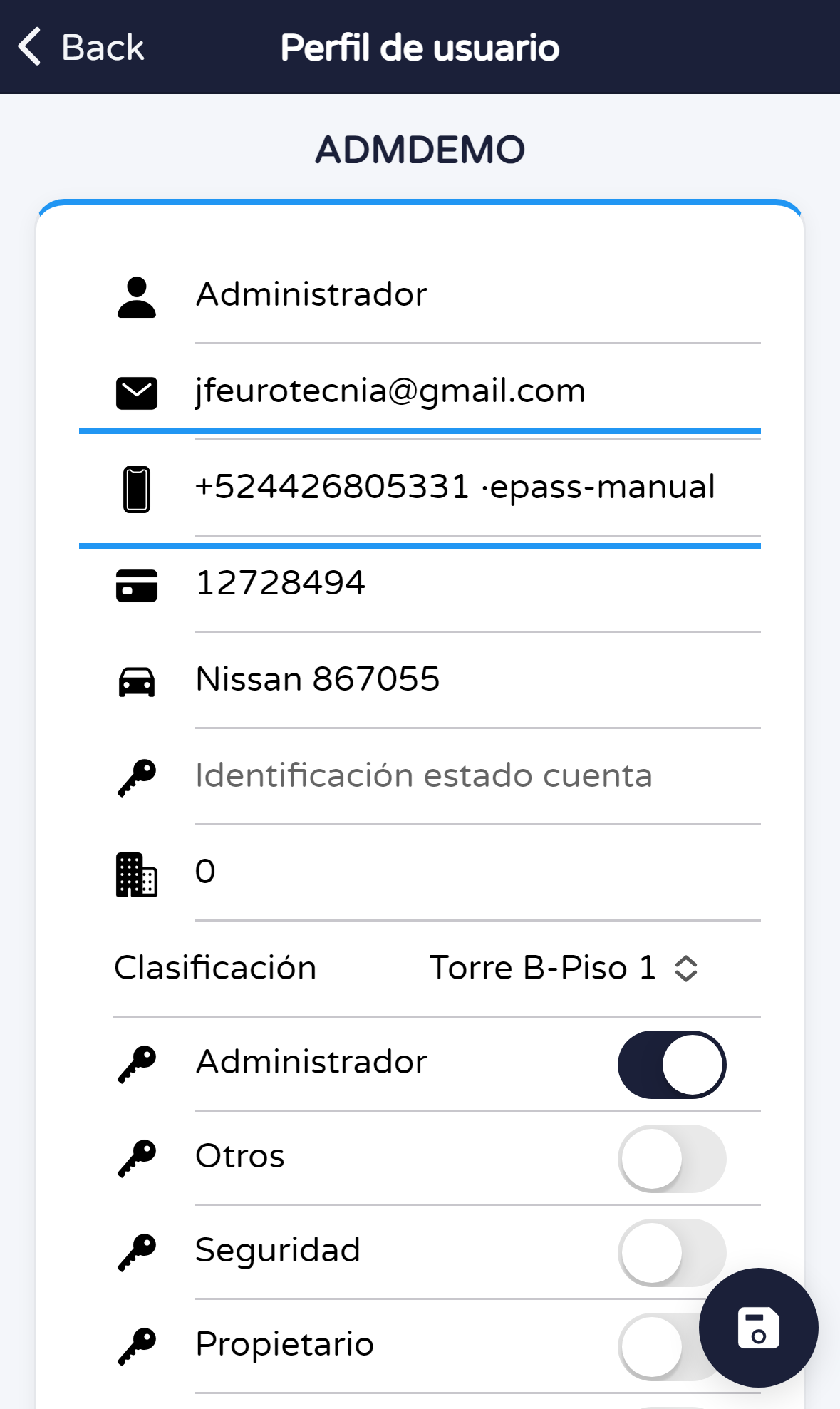
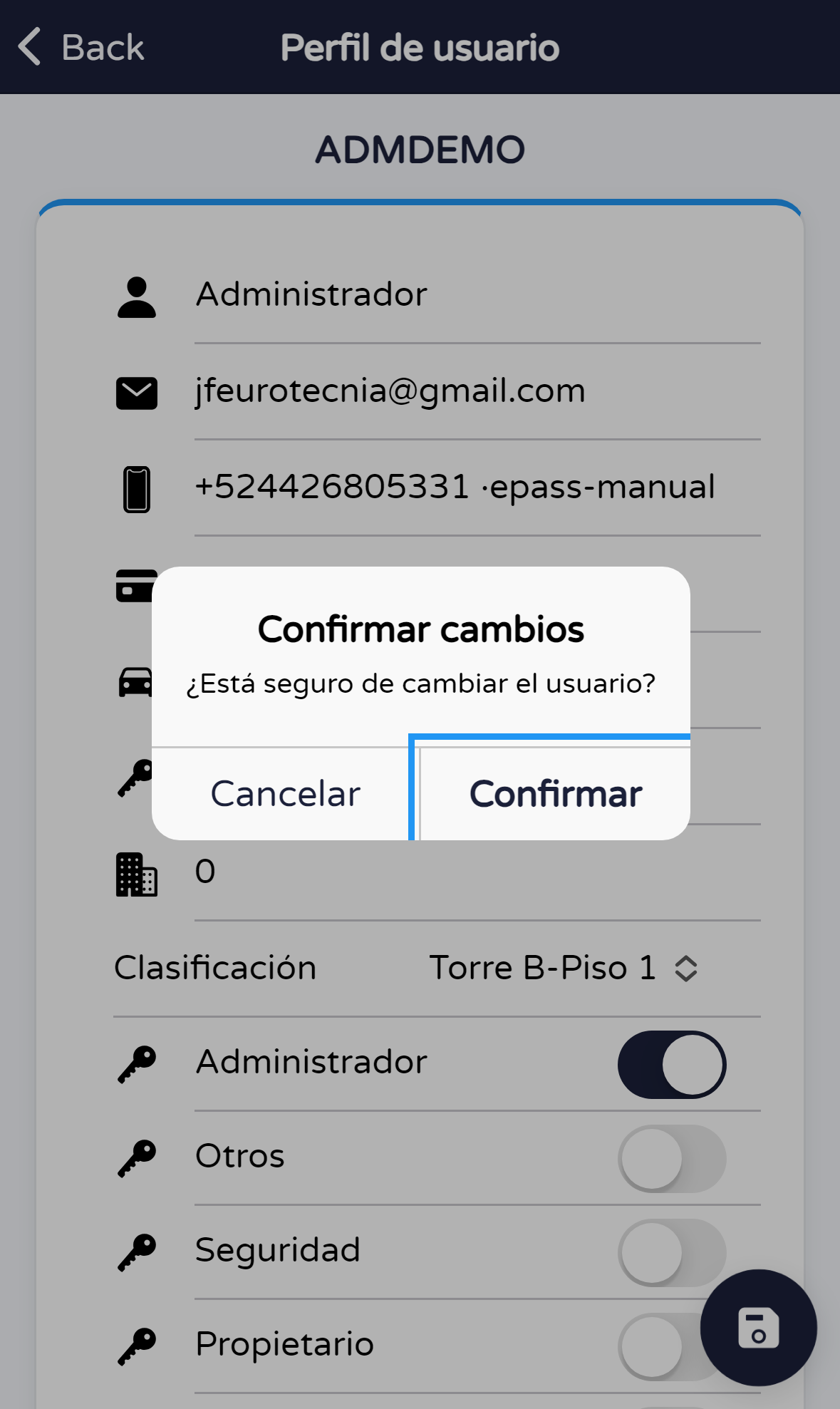
You are now on the screen where you can change that person’s data. Change what you need (this guide shows the phone as an example). When you are done, tap the round Save button at the bottom right (disk icon). The app will ask you to confirm: tap Confirm (or the equivalent word in your language) to apply the changes.
Useful notes