Step 1
Open the Users list
From Profile, open the Security tab. Tap Users. When the list loads, you will see the active users and their cards.


Document version 0.0.1 · Generated 14 May 2026, 21:45
PDF: in the browser use Ctrl+P (or Cmd+P) → Save as PDF to share or archive.
This guide explains how an administrator sends the official epass flyer from the Users list to the email address saved for a person. It also shows what the message body looks like: the same HTML as the flyer, plus a short closing notice.
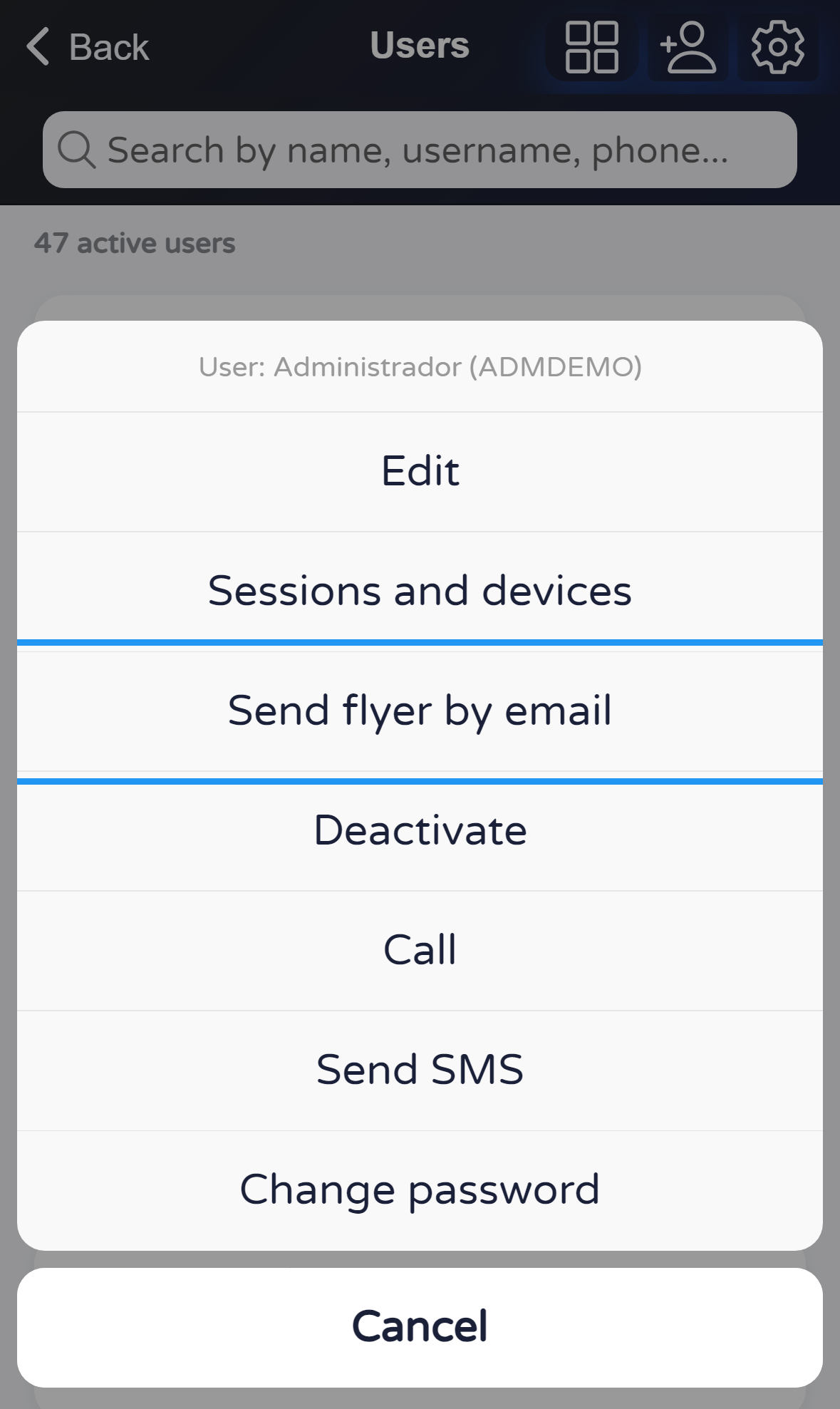
If a picture shows a blue frame, it is only to help you follow the steps; it is not part of the app.
Before you start
What you will do
You will open Profile → Security → Users, open one person’s menu, and locate Send flyer by email. The annex at the end shows the HTML used in the message body.
Steps
From Profile, open the Security tab. Tap Users. When the list loads, you will see the active users and their cards.
Tap the person’s card. A menu opens from the bottom with several actions. Choose Send flyer by email only when you really want to send it: the app will queue the message to the address on file. The pictures for this guide stop before sending: use Cancel to close the menu without sending.
The email has a fixed subject and a body in HTML: the same flyer you can open in the app (official links and store buttons), plus a short notice at the end about the epass community and password recovery. If the flyer file cannot be loaded, the app sends a shorter body with a link to open the flyer in the browser instead.
Annex — HTML used in the email body
The files below match what the app tries to put in the message (same flyer as in the app, plus the closing notice). You can open them in a new tab or save them for your records.
The live app may adjust small details over time; if something does not match what you see in your inbox, trust the message you actually received.
Open or download this HTML file
(folleto-correo-cuerpo-en.html)
Useful notes