Change password

User manual · Profile & menu

Document version 0.0.1 · Generated 20 Apr 2026, 19:32

PDF: in the browser use Ctrl+P (or Cmd+P) → Save as PDF to share or archive.

About this guide

Steps for users who want to update their EPASS password from the side menu. Wording follows your account language.

Your community may apply password rules (length, characters). If something fails, read the message on screen.

Before you start

What you will do

Open the menu, choose Change password, enter the new password twice, tap Confirm new password, then confirm or cancel in the dialog.

Steps

Step 1

Open the menu and tap Change password

From Home (or any main tab), open the side menu with the menu control in the header. In the list, tap Change password.

Screenshots may show a blue outline around the row — that highlight is only for the manual.
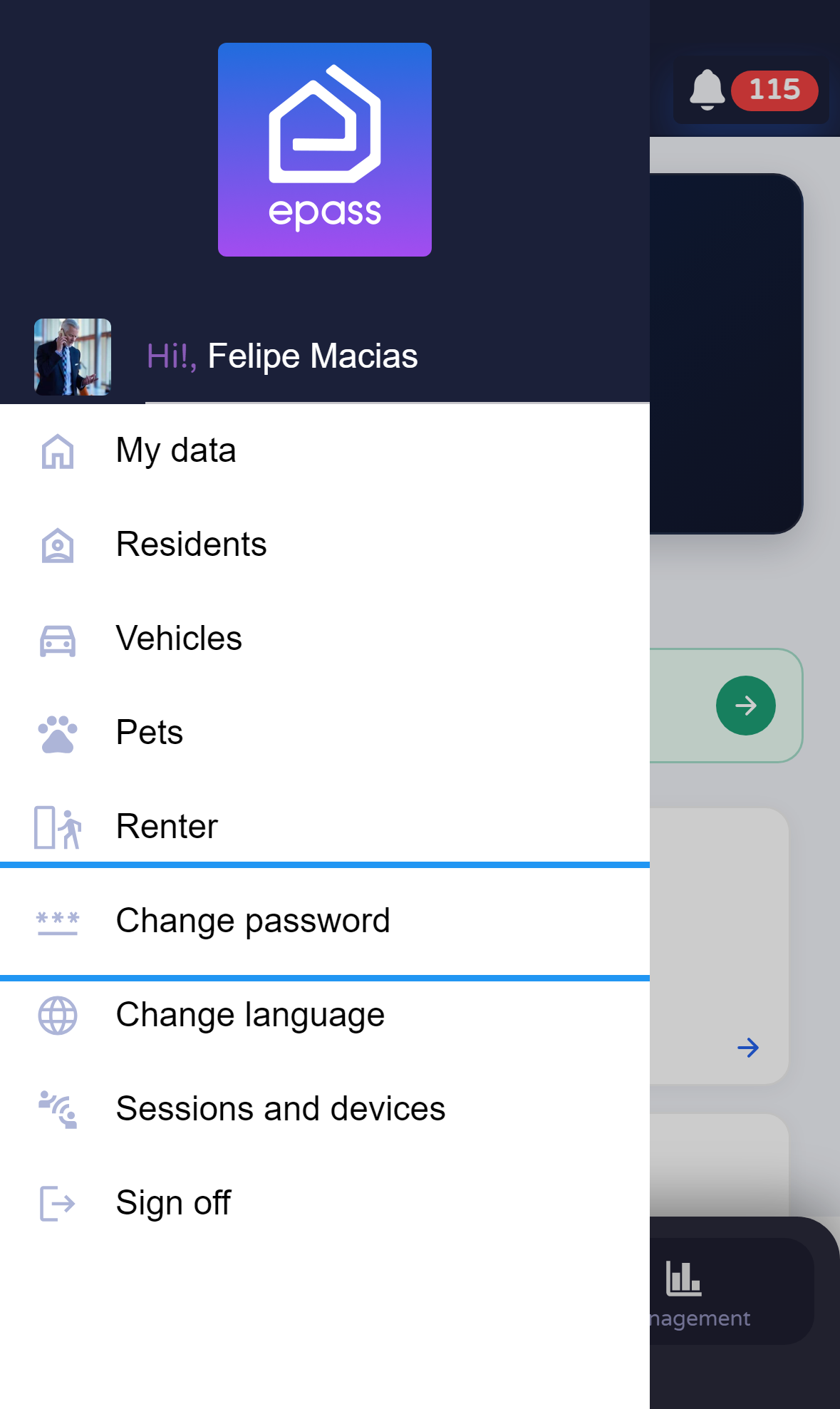
Side menu — Change password
Step 2

Enter the new password twice

On the Change password screen, type the new password in the first field and repeat it in the second. Then tap Confirm new password.

Screenshots may show a blue outline around the button — that highlight is only for the manual.
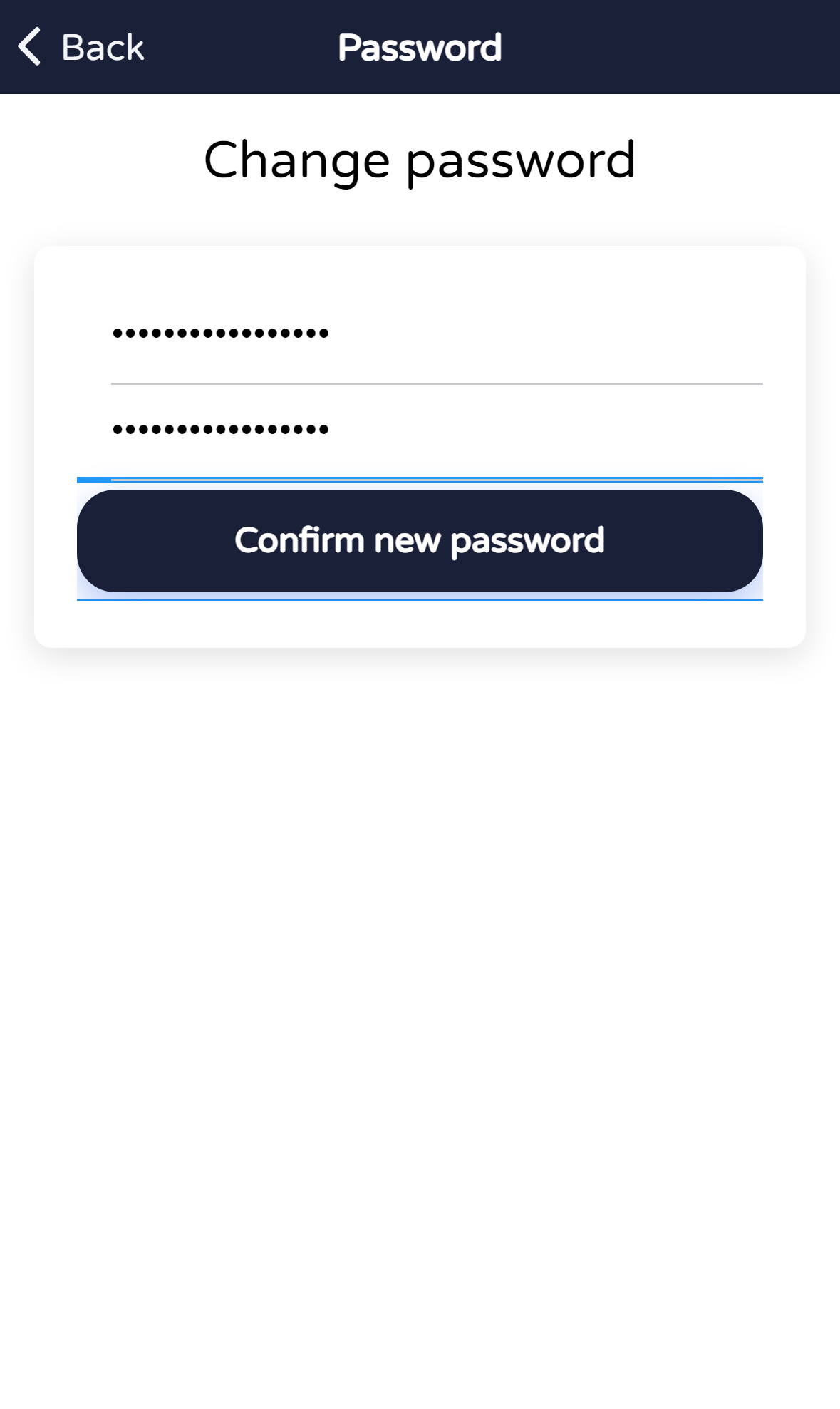
Form — new password and confirm
Step 3

Confirm or cancel in the dialog

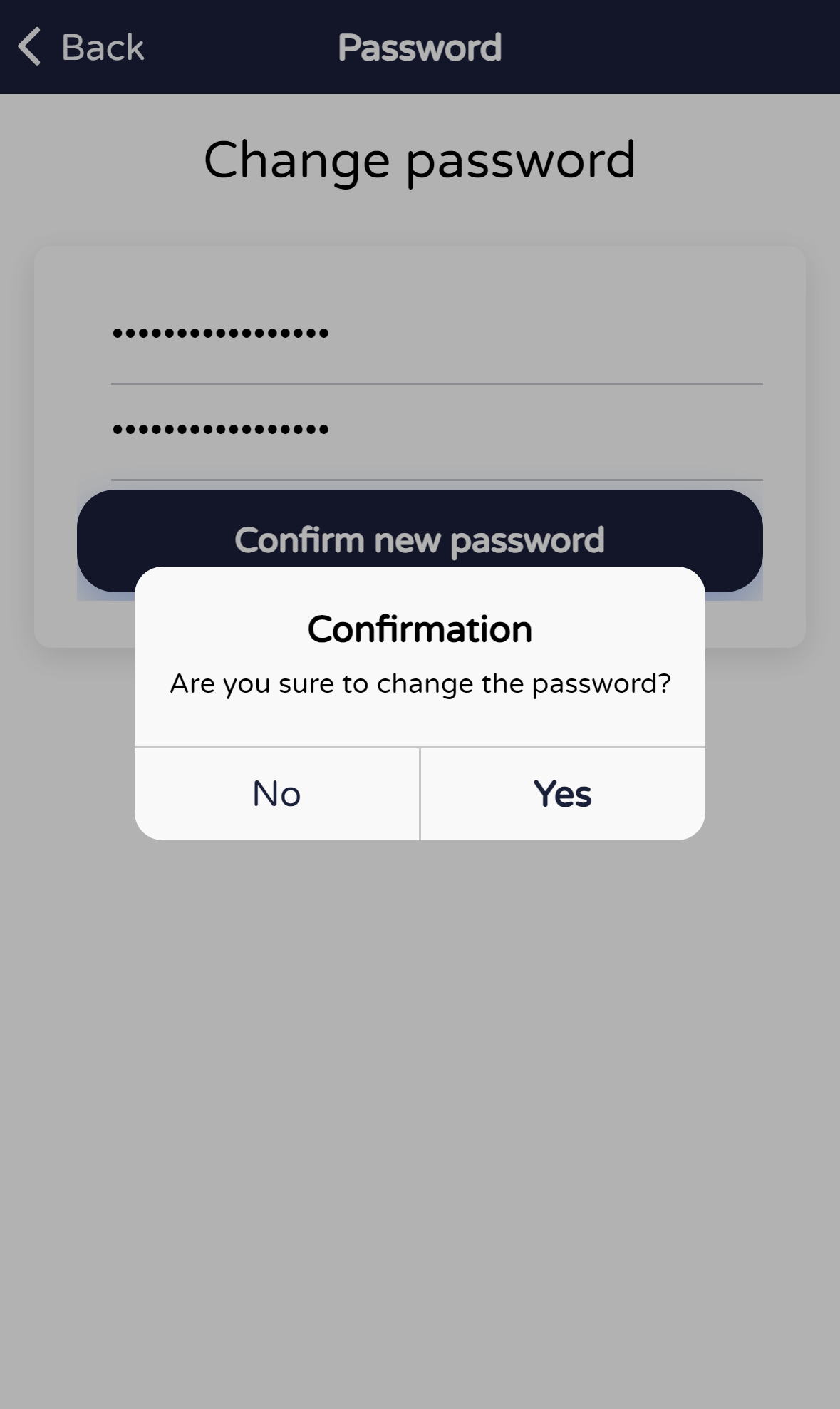
A dialog asks if you want to change the password. Tap Yes to apply the change or No to leave everything as it was.

For automated screenshots the test taps No after the capture so the password is not changed.
Confirmation dialog

Quick tips