Generate QR

User manual · Profile · Digital Key

Document version 0.0.1 · Generated 20 Apr 2026, 19:55

PDF: in the browser use Ctrl+P (or Cmd+P) → Save as PDF to share or archive.

About this guide

Steps to open your dynamic access QR from the Profile tab when your community enables the digital key for your account.

The QR refreshes periodically; use it at EPASS readers as indicated by your administrator.

Before you start

What you will do

On Profile, scroll until you see Generate QR, open it, and display the code on screen for scanning.

Steps

Step 1

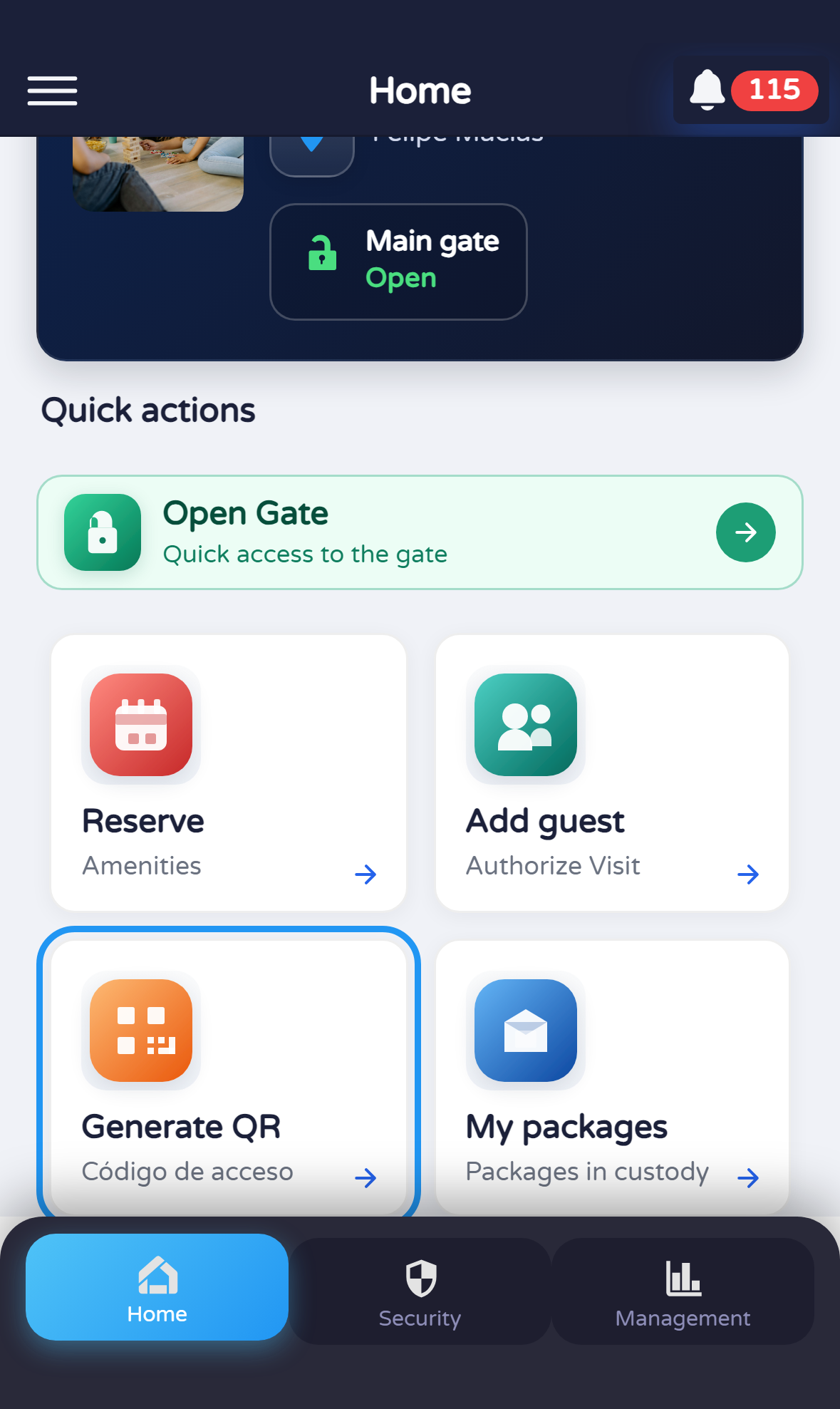
Open Profile and scroll to Generate QR

From Profile, scroll down the dashboard if needed until you see the tile Generate QR (access code) with the QR icon.

If you do not see this tile, your profile may not have the digital key — ask your administrator.
Profile — Generate QR tile
Step 2

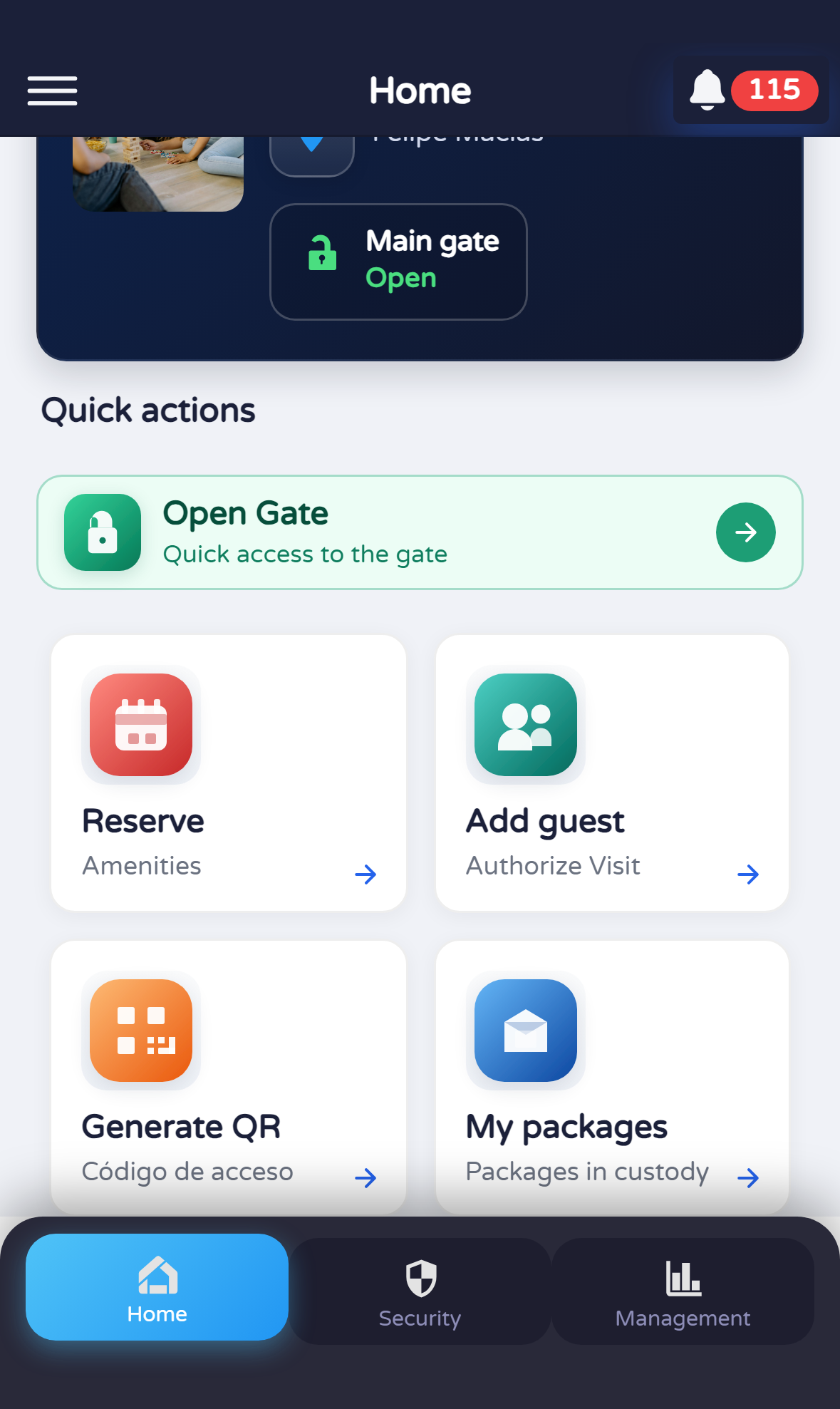
Tap the tile

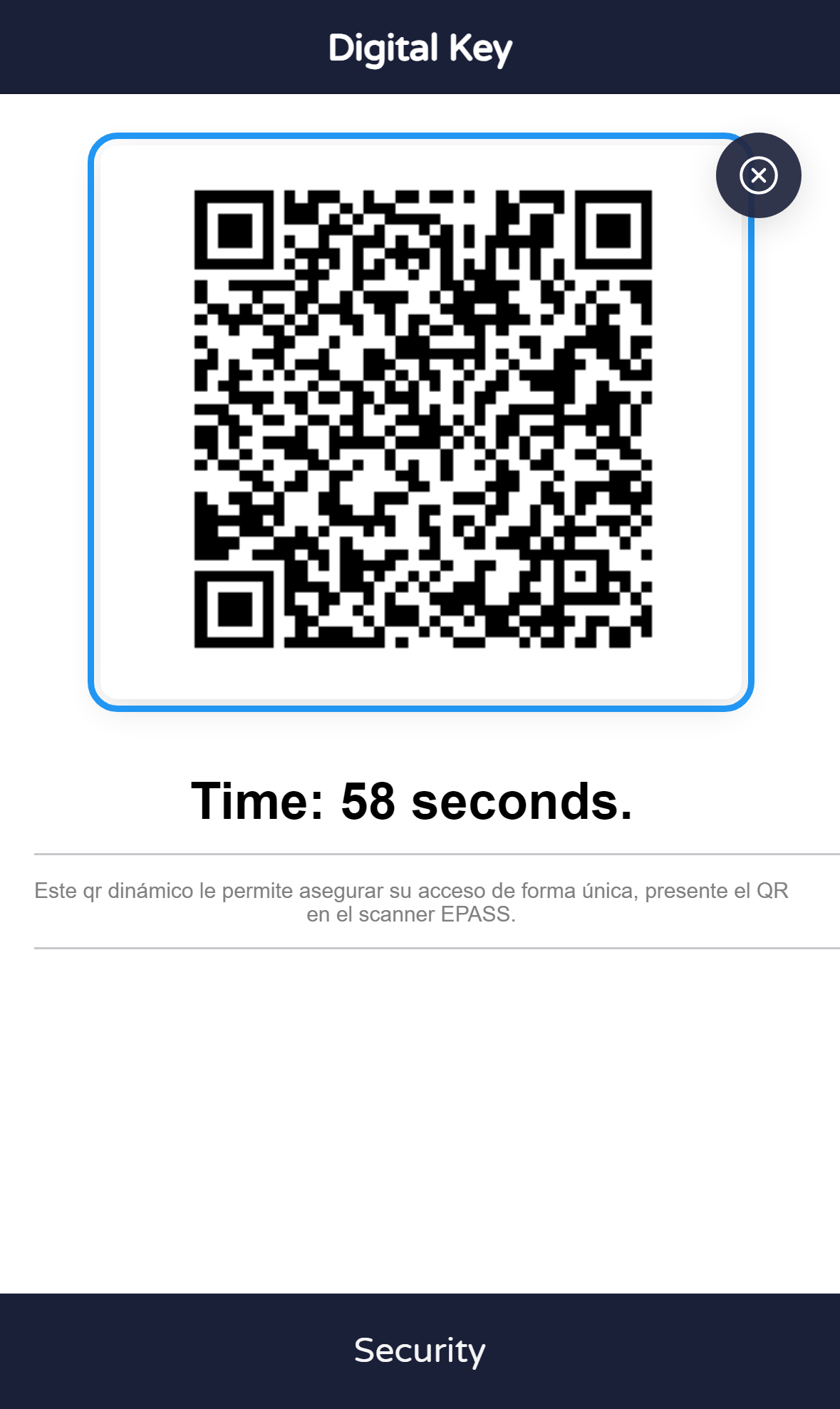
Tap Generate QR to open the Digital Key screen (modal) with your dynamic code.

Screenshots may show a blue outline around the tile — that highlight is only for the manual.
Profile — tap Generate QR
Step 3

Show the QR at the reader

When the code appears, present it to the EPASS reader. Close the screen with the close control when you are done.

Some labels in this screen may appear in a fixed language in the app; the manual text is available in English and Spanish.
Digital Key — dynamic QR

Quick tips