Step 1
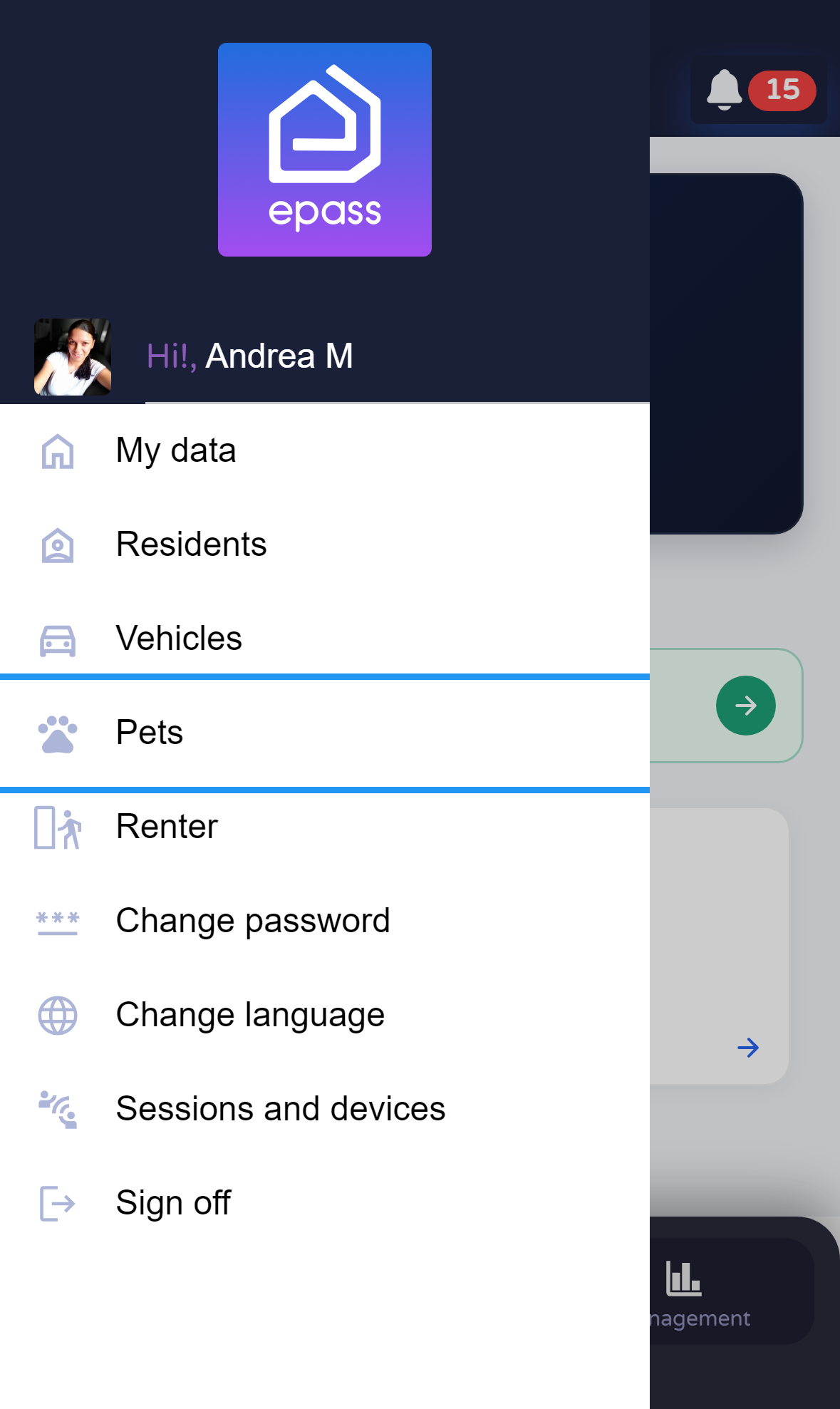
Open the menu and tap Pets
From Home, open the side menu and tap Pets (pet icon).

Document version 0.0.1 · Generated 20 Apr 2026, 20:52
PDF: in the browser use Ctrl+P (or Cmd+P) → Save as PDF to share or archive.
Steps to add, edit, or delete pet records linked to your unit from the side menu.
Your community may limit how many pets you can register; if saving fails, read the message on screen.
Before you start
What you will do
Open Pets from the menu, use Add to create an entry, and use the card menu to edit or delete.
Steps
From Home, open the side menu and tap Pets (pet icon).
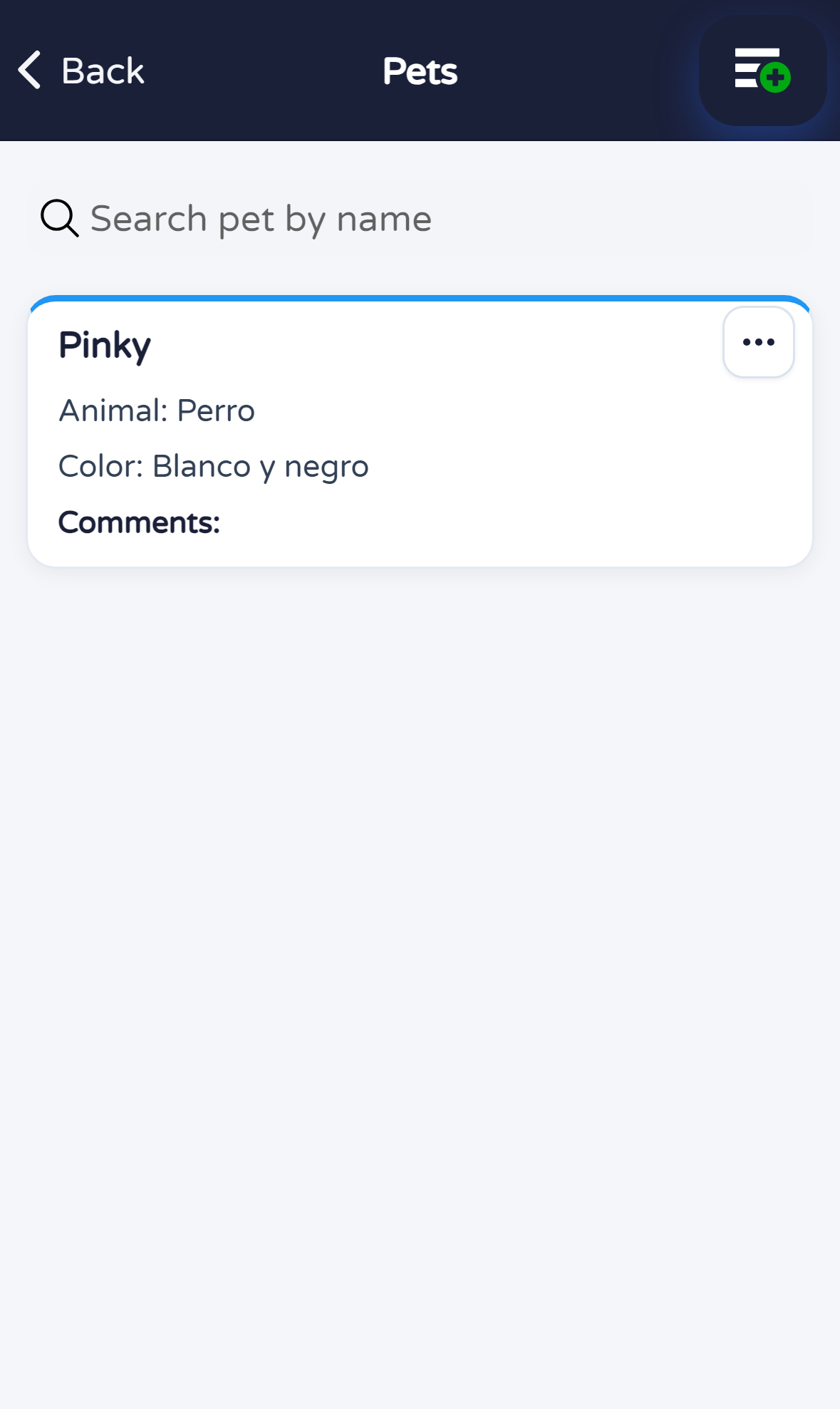
The screen lists registered pets with search by name. Use the + button in the header to add a new pet.
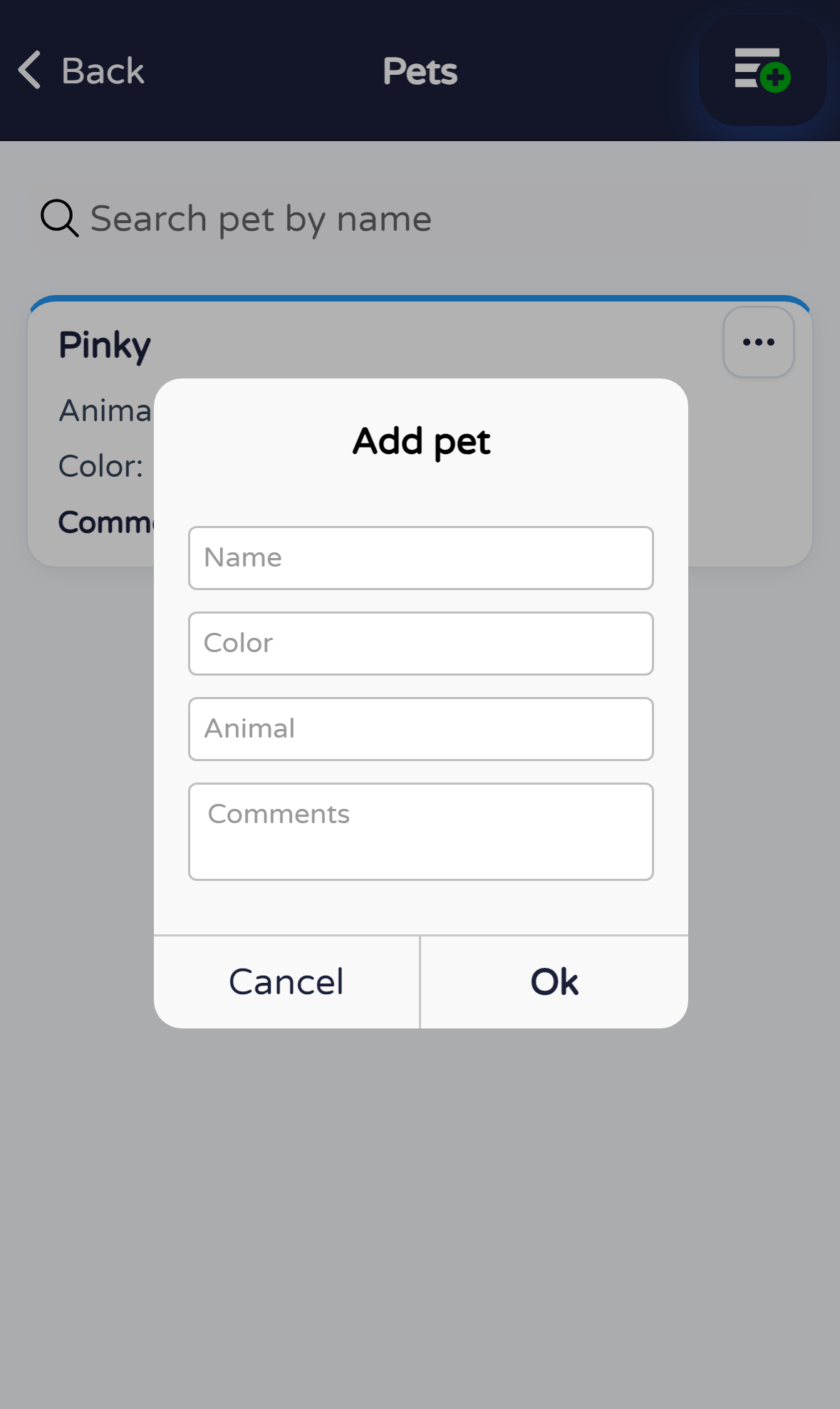
Tap + and complete the fields (at minimum name). Confirm with Ok or cancel to go back.
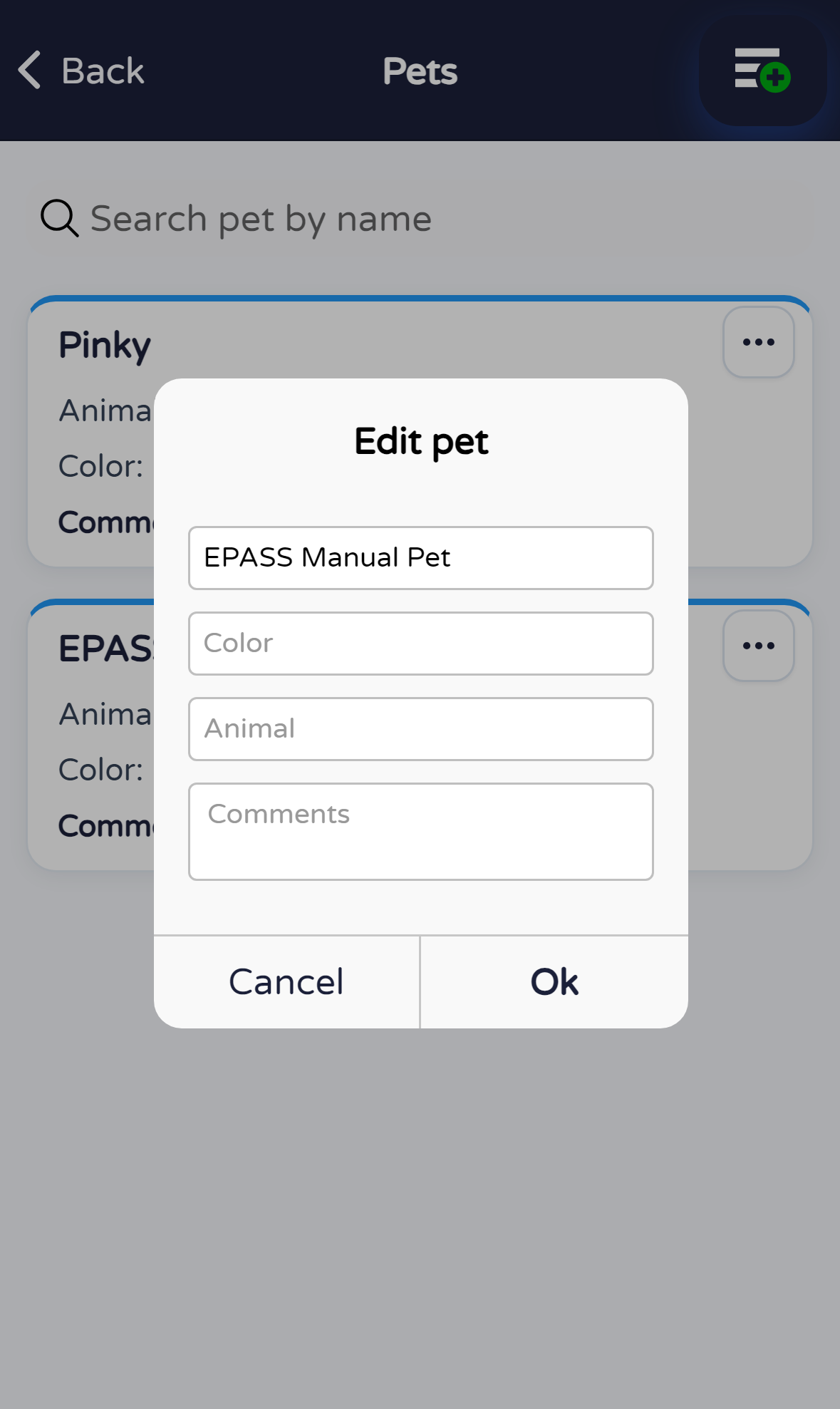
Tap a card or the ⋯ button. Choose Edit to change data or Delete to remove the entry (deletion applies immediately).

In Edit pet, update the fields and confirm with Ok, or cancel without saving.
Quick tips